A Depotex license is a signed file bound to the installation's ID. Its tier decides which features are available; it can also cap how many people may sign in and how many servers may run.
1. Tiers
| Tier | Adds, for example |
|---|---|
| Standard | Spaces with hosted and group repositories in every format, the artifact browser, users and groups, backups, email and viewing scheduled jobs |
| Pro | Proxy repositories, tags and promotion, clustering (several servers), the system check, the audit log, policies, automation, plugins, API token IP allowlists and rotation |
| Enterprise | Single sign-on, quarantine, the block list, branding, vibe artifacts and managing everyone's API tokens |
Each feature's page says which tier it needs. A feature the license doesn't cover shows what it would need instead of its settings, and its API answers 402 license_required.
Settings → Application → Licensing (the licenses:admin permission) shows the license at a glance: its tier and status, who it's issued to, when it expires, and how many users and servers are in use against its limits (amber from 80%, red at the limit). Below are the features it turns on, its license ID, and the installation ID to quote when requesting a new license (Copy puts it on the clipboard).
Super admins see a banner at the top when the license expires within 30 days (information, then a warning in the last 14 days and a problem in the last 7), is in its grace period, has expired or isn't valid; its Update license button takes you to the update section. LICENSE_BANNER_DAYS changes the 30 days (0 turns the banner off).
2. Get a license
To get a license, a trial or a renewal, or to change your tier, user limit or server limit, contact us through vectored.dev/#contact or email support@vectored.dev. Include:
| What | Where to find it |
|---|---|
| Installation ID | The setup wizard's License step (Copy installation ID), Settings → Application → Licensing, or ./server --machine-id on the machine that will set Depotex up (on Kubernetes, prime-secrets.sh installation-id: see Install with Helm). A cluster has one ID: every server shares the one it was set up with. |
| Licensee | The organization name to show on the license |
| Tier | Standard, Pro or Enterprise (see Tiers) |
| Users and servers | How many people will sign in, and how many servers will run (1 for a single server) |
| Term | Start date and length, or the license ID you are renewing |
| Contact | Who receives the license and renewal reminders |
You receive a license file (.json). Apply it in the setup wizard on a new installation, in the setup file or Helm values for an unattended setup, or under Update license below on a running one.
The installation ID is saved in the database when Depotex is set up, so adding servers or moving them to new machines with the same database keeps it. A new installation (a new database, including one you restore a backup into) has its own ID and needs a license for it: request it before you move.
3. When a license expires
- Grace period: a license can allow some days of grace after its expiry date. Everything keeps working; the page and the banner say how many days ago it expired.
- After the grace period, or with a license that isn't valid (issued for another installation ID, damaged), Depotex only answers sign-in, health checks and the license itself: every other page, API call and package download is refused with 402 license_required until a valid license is applied. Nothing is deleted.
- Apply the renewal as below; it takes effect at once, without a restart.
4. Updating the license
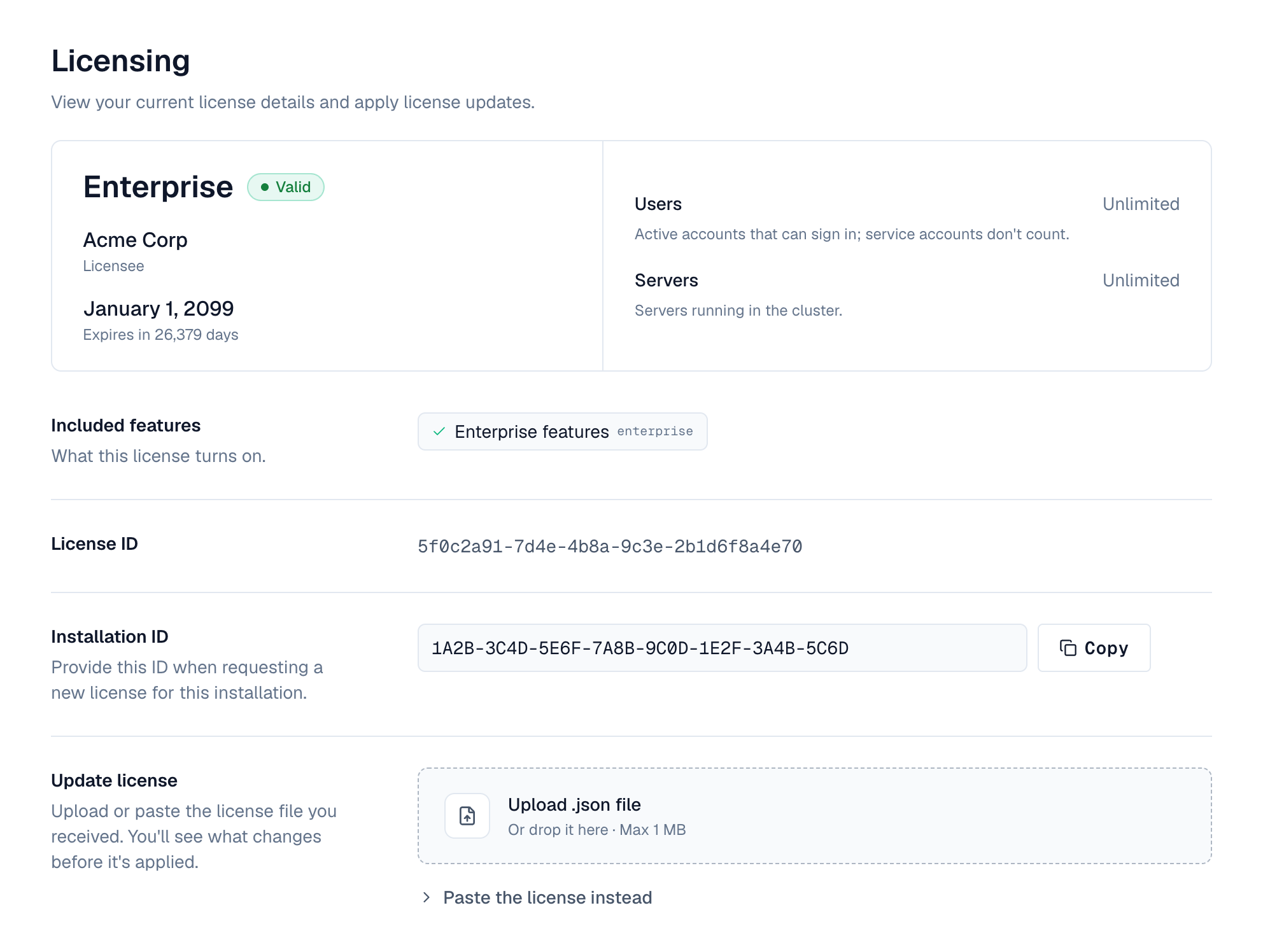
- Load the new license — Under Update license, select Upload .json file (or drop the file on it), or open Paste the license instead, paste it and select Check license.
- Compare — Depotex checks the signature and that the license was issued for this installation, then shows the current and the new license side by side. Changed rows are highlighted, with notes such as how much later it expires, a user or server limit below what's in use now, or features it adds or removes.
- Apply — Select Apply license, or Cancel to keep the current one. The page shows the new license at once.