HTTP CLIENT
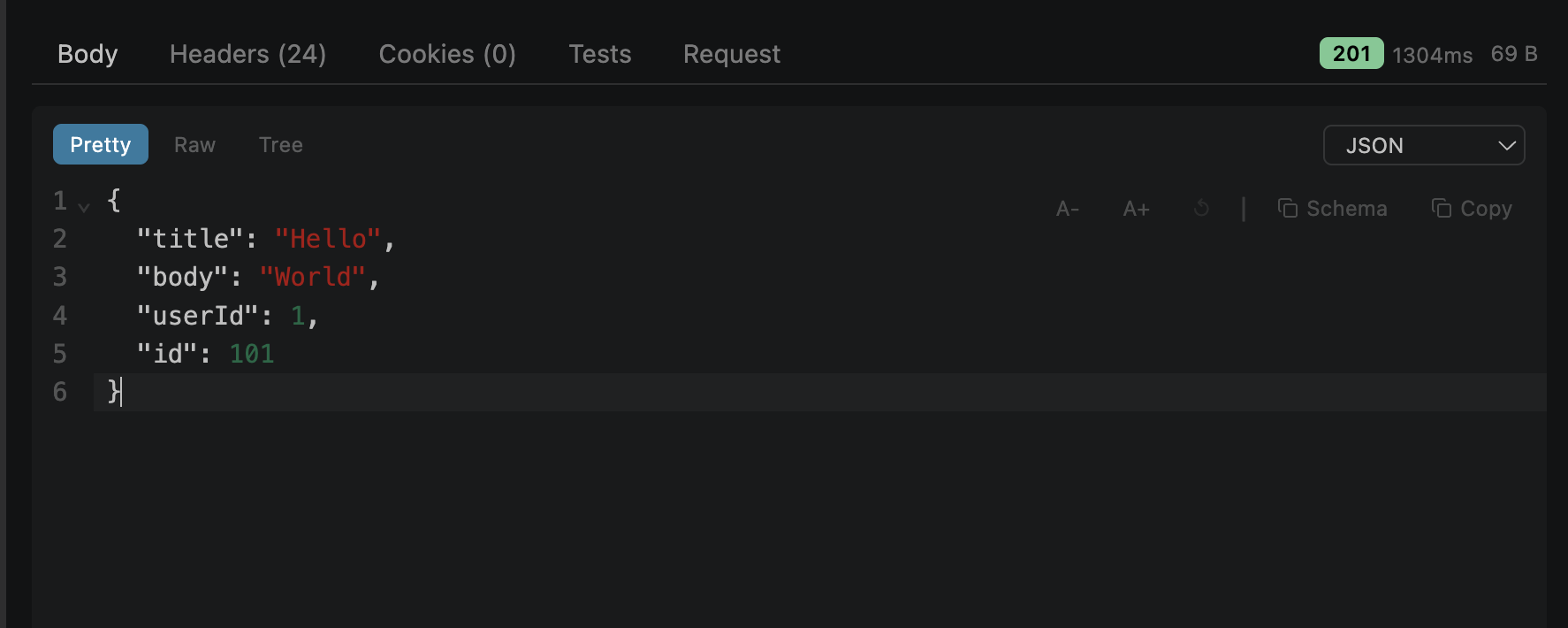
Status Bar
The top of the response area shows three key metrics at a glance:
Status code + text, color-coded
Total response time (clickable)
Response body size
Status code colors:
Timing Breakdown
Click the response time to expand a detailed breakdown of each network phase:
| Phase | Description |
|---|---|
| DNS Lookup | Domain name resolution |
| TCP Connect | TCP handshake to server |
| TLS Handshake | SSL/TLS negotiation (HTTPS only) |
| TTFB | Time to first byte — server processing time |
| Download | Response body transfer |
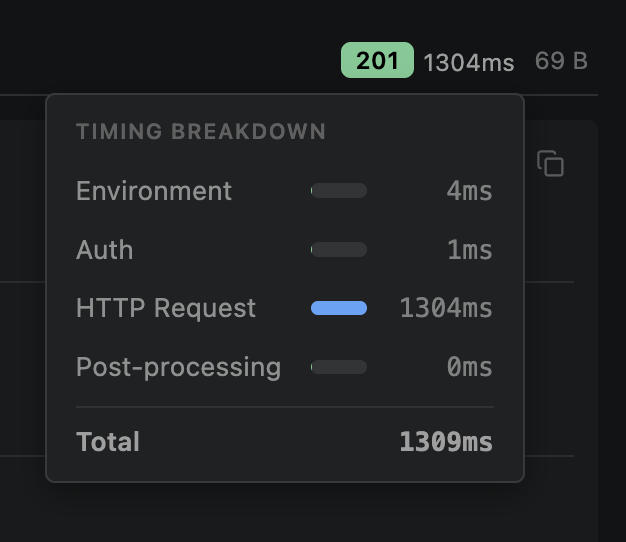
Click the time value to toggle the breakdown — useful for diagnosing slow responses
Body Tab
Three view modes for the response body, selected via sub-tabs:
Pretty
Syntax-highlighted CodeMirror editor (read-only). Supports 9 language modes: JSON, HTML, XML, CSS, JavaScript, YAML, GraphQL, TypeScript, plain text. Ctrl+F search with scrollbar match highlights. A-/A+ zoom.
Raw
Plain unformatted text. Useful for non-JSON responses or when you need to see exact whitespace and encoding.
Tree
Interactive collapsible JSON tree. Click to expand/collapse objects and arrays. Shows key counts. Best for exploring deeply nested responses.
Headers Tab
Displays all response headers in a two-column table (name → value). Click any value to copy it to clipboard.
Headers are shown as returned by the server — case is preserved. Common headers like content-type, x-request-id, and set-cookie appear here.
Cookies Tab
Parsed cookies from Set-Cookie response headers. Shows all cookie fields:
Cookies are automatically saved to the cookie jar (if enabled) and sent with future requests to the same domain.
Actual Request Tab
Inspect exactly what was sent over the wire — after all variable interpolation, auth injection, cookie attachment, and pre-request script execution.
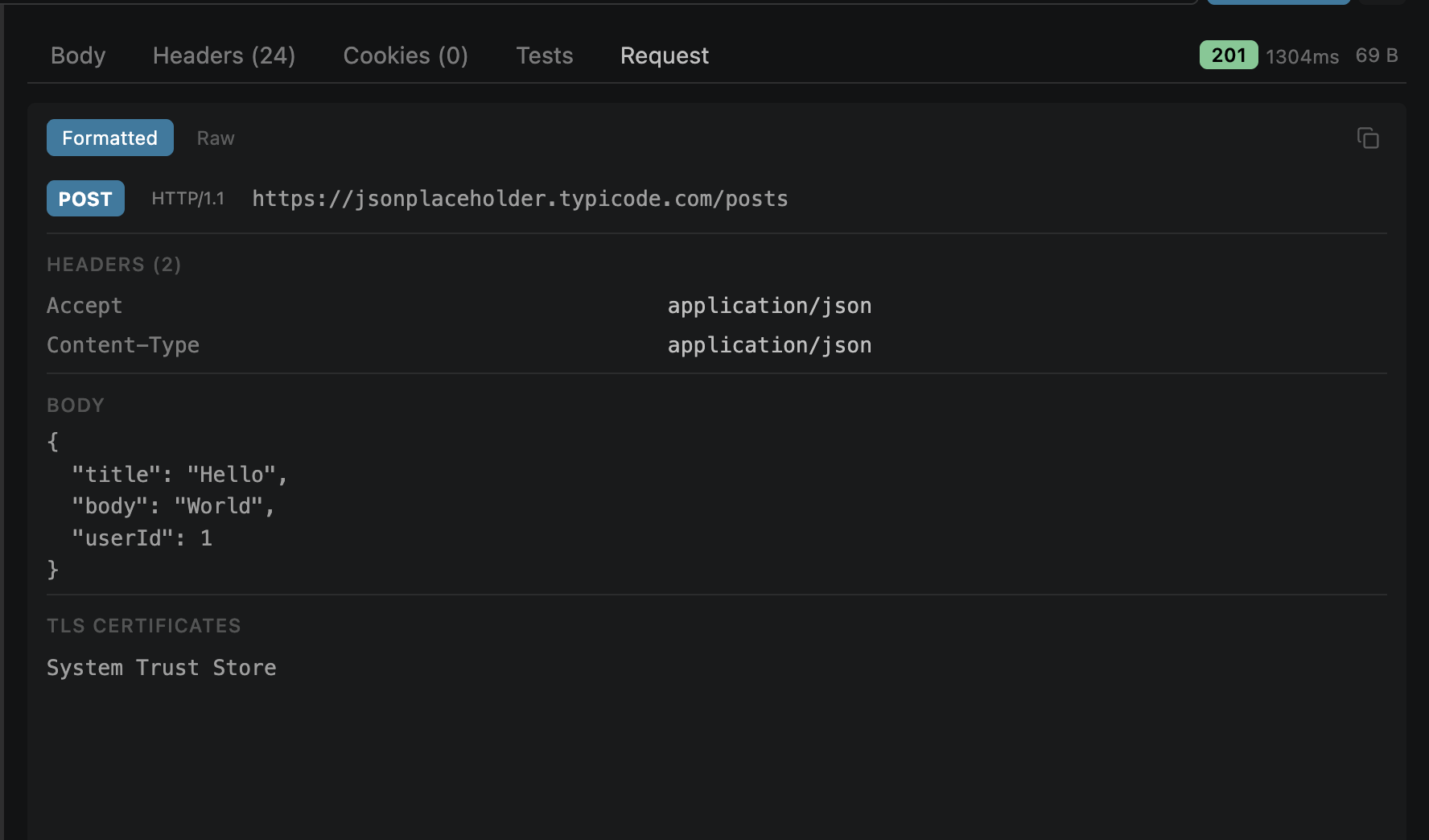
Invaluable for debugging — see the resolved {{variables}}, injected auth headers, and final body
Test Results Tab
Appears when the request has GUI test rules or test scripts. Shows pass/fail for each assertion:
Also shows Set Variable results — which variables were extracted and whether they were saved to the environment. Plus script console output from console.log() in test scripts.
Schema Extraction
Click Copy Schema in the body toolbar to generate TypeScript-style type definitions from the response.
| Format | How it works |
|---|---|
| JSON | Infers types recursively. Arrays merge up to 50 elements (unions for mixed types, optional keys marked ?) |
| YAML | Indent-based tree parsing, generates interfaces from structure |
| XML | Stack-based tag parser, repeated children typed as arrays |
| GraphQL / TS | Extracts existing type/interface/enum blocks directly |
Example output from a JSON response:
interface Response {
  userId: number;
  id: number;
  title: string;
  body: string;
}
History Dropdown
The response toolbar includes a history dropdown that shows previous responses for the same URL. Click any entry to view that historical response without re-sending.