MOCK SERVERS
Overview
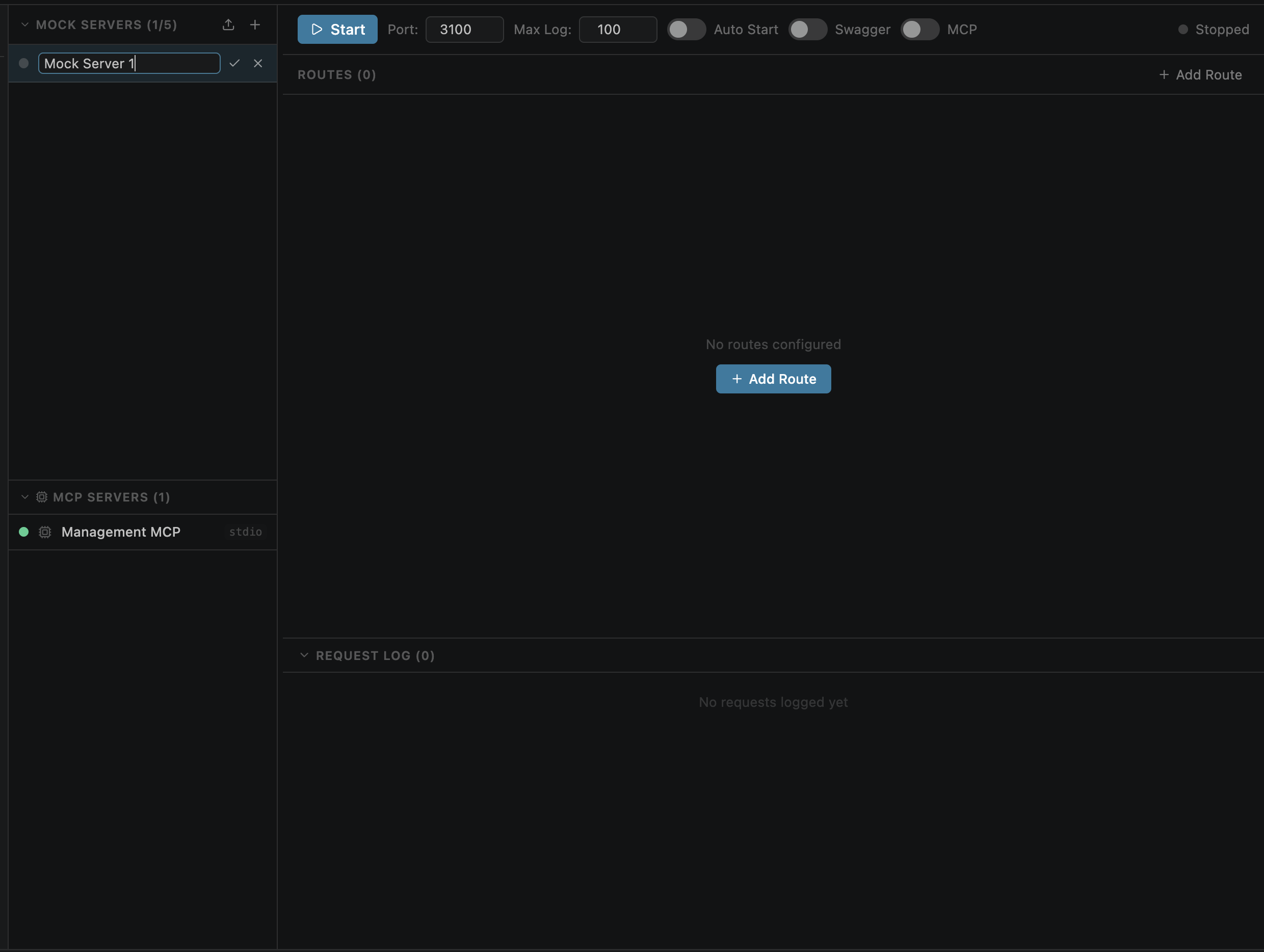
API Studio includes built-in multi-instance mock servers for offline API simulation. No external tools, Docker containers, or cloud services needed. Each server runs on a configurable port on localhost and is available in Advanced Mode via the Mock+MCP view.
Use cases
Frontend Development
Build UIs without waiting for the backend to be ready
Integration Testing
Test against predictable, deterministic responses
Demo Environments
Showcase features with canned API responses
Offline Prototyping
Design and test APIs without network connectivity
Creating a Server
Create a new mock server in three steps:
Open the Mock+MCP view from the top-level view switcher
In the Mock Servers section, click + New Mock Server
Enter a name and port (e.g., 3100)
Configuration
Each mock server has the following configurable settings:
| Setting | Description |
|---|---|
| name | Display name for the server in the sidebar |
| port | Port number (1024–65535). Must be unique across all mock servers |
| auto-start | Automatically start when VS Code opens |
| swagger enabled | Serve interactive Swagger UI at /_swagger |
| max log entries | Maximum request log entries retained (default: 100) |
.openpost/mock-servers.json in your workspace root.
Starting & Stopping
Control server state with the play/stop button in the server list:

Auto-Start
Enable auto-start to automatically launch the server when VS Code opens — useful for development servers that should always be available.
Multiple Servers
Run as many mock servers as you need simultaneously — each on a different port with independent route configs, logs, and settings.
Common multi-server setup
| Server | Port | Purpose |
|---|---|---|
| REST API | 3100 | Main application API |
| Auth Service | 3101 | OAuth / token endpoints |
| Webhooks | 3102 | Webhook receiver for testing callbacks |
Each server operates completely independently — starting, stopping, or modifying one does not affect the others.
Import & Export
Share mock server configurations with your team:
Export
Right-click a server → Export. Saves full config + all routes as a JSON file. Includes response bodies, headers, and settings.
Import
Load an exported JSON file to recreate a server with all its routes and configuration.