The Builder Canvas
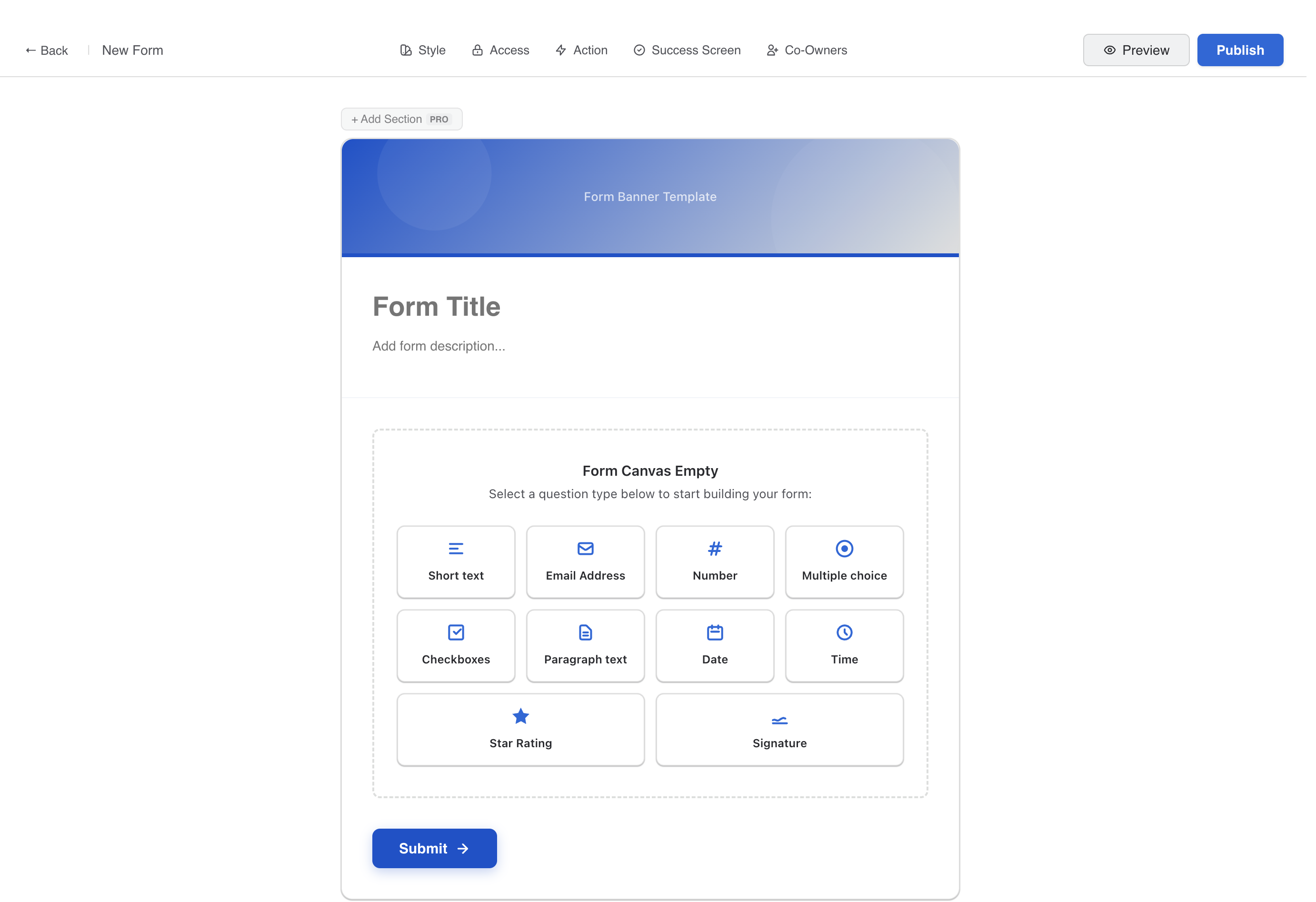
The canvas displays a centered form preview where you edit titles and descriptions inline. What you see is what respondents get — a true WYSIWYG experience.
Adding Questions
Click + Add Question to open the field picker. Choose from 13 field types — each represented by its own icon for quick identification.
Question Configuration
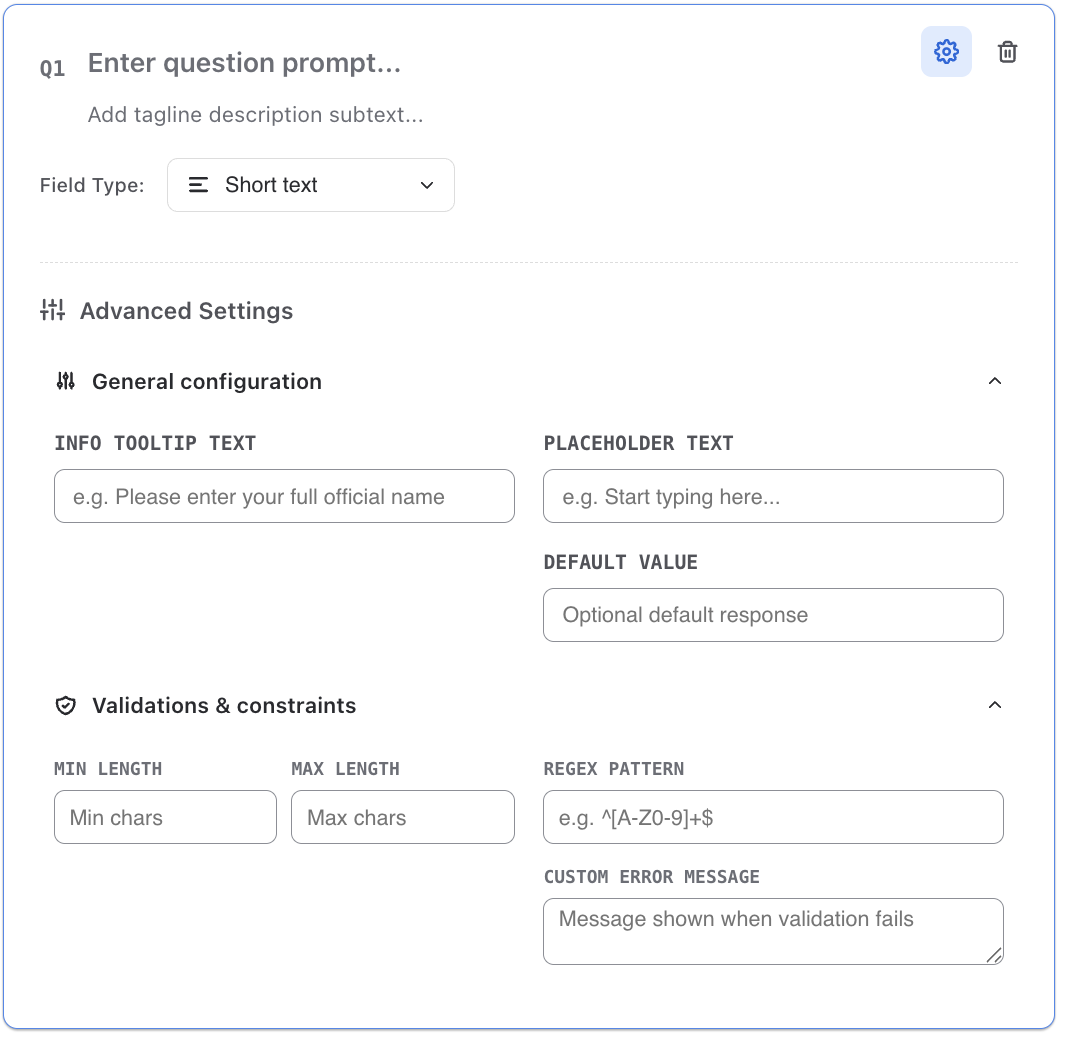
Hover any question to reveal its toolbar: a Required toggle, a Settings gear, and a Delete button. Click the gear to access advanced settings including tooltip text, placeholder, and default value.
Rich Text Labels
Question labels support Bold, Italic, and Link formatting via a mini toolbar that appears when editing a label.
Sections Pro
Add multiple sections with + Add Section at the bottom of the canvas. Sections are edited in a stacked view — each with a numbered header, inline title, and its own Add Question control — while respondents see them as separate pages with Next and Back navigation. See Multi-Section Forms.

Success Screen
Design what respondents see after submitting: title, message, and either a success icon (built-in drawn icons or any emoji from the picker) or a custom completion image. A live preview in the panel shows the result as you type.
Post-Submit Automation
From the Action panel, open the Automation Builder to run Confluence, Jira, Slack, or Teams actions after each submission — with conditions, branching, and batching. See Automation.