The Automation Canvas
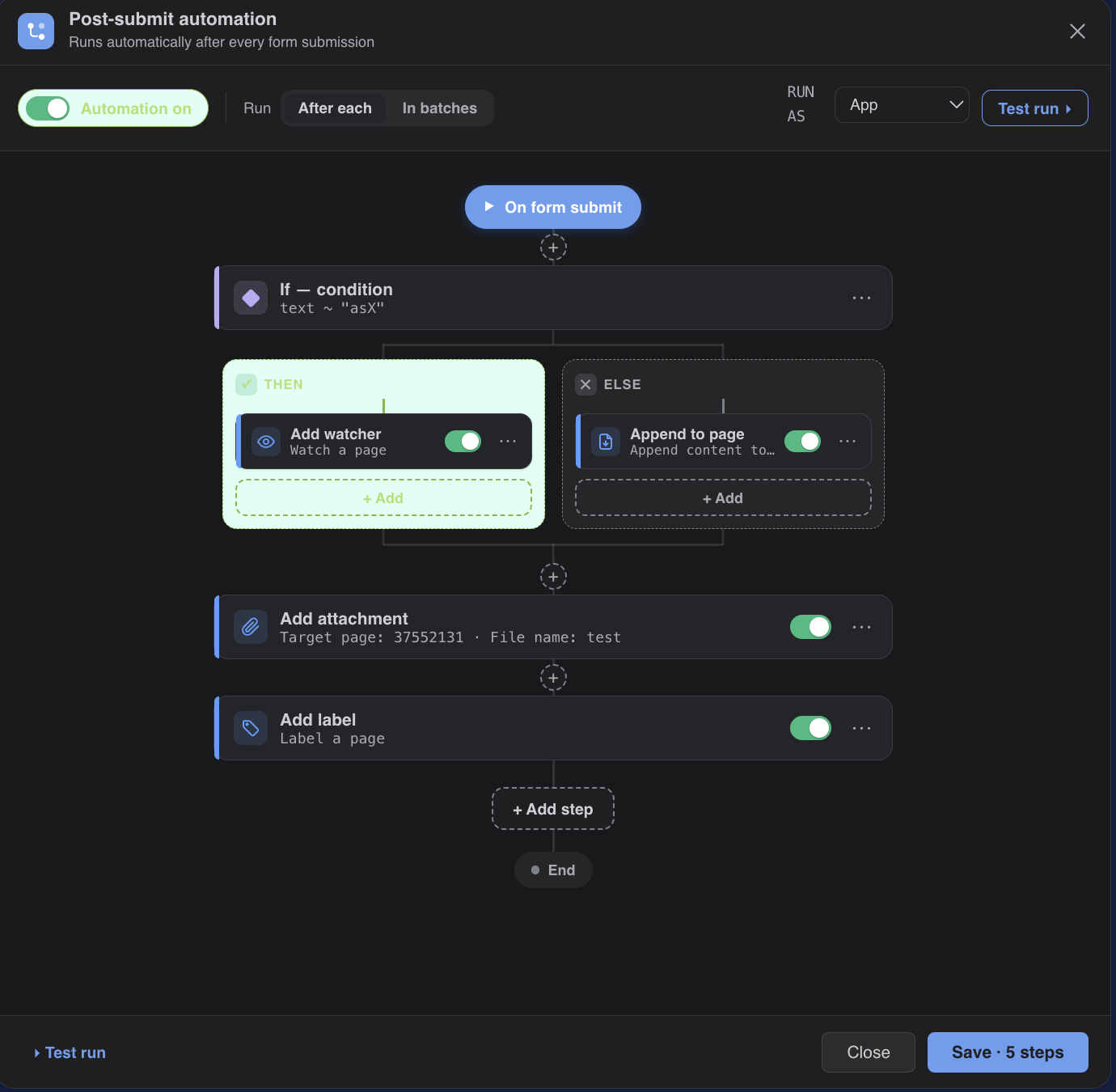
Automations are built on a visual canvas: a trigger chip (On form submit) at the top, a vertical flow of step cards, and an End marker. Insert steps anywhere with the + buttons on the connector line.
- Each step card shows a provider color strip, a summary of its configuration, an on/off toggle, and a ⋯ menu (Configure / Duplicate / Delete).
- Duplicating a condition clones its entire Then / Else subtree.
- The master pill in the command bar turns the whole automation on or off without deleting anything.
Actions
All configuration fields marked with the smart-value inserter accept tokens like {{form.title}}, {{answer.field_name}}, or {{response.table}}.
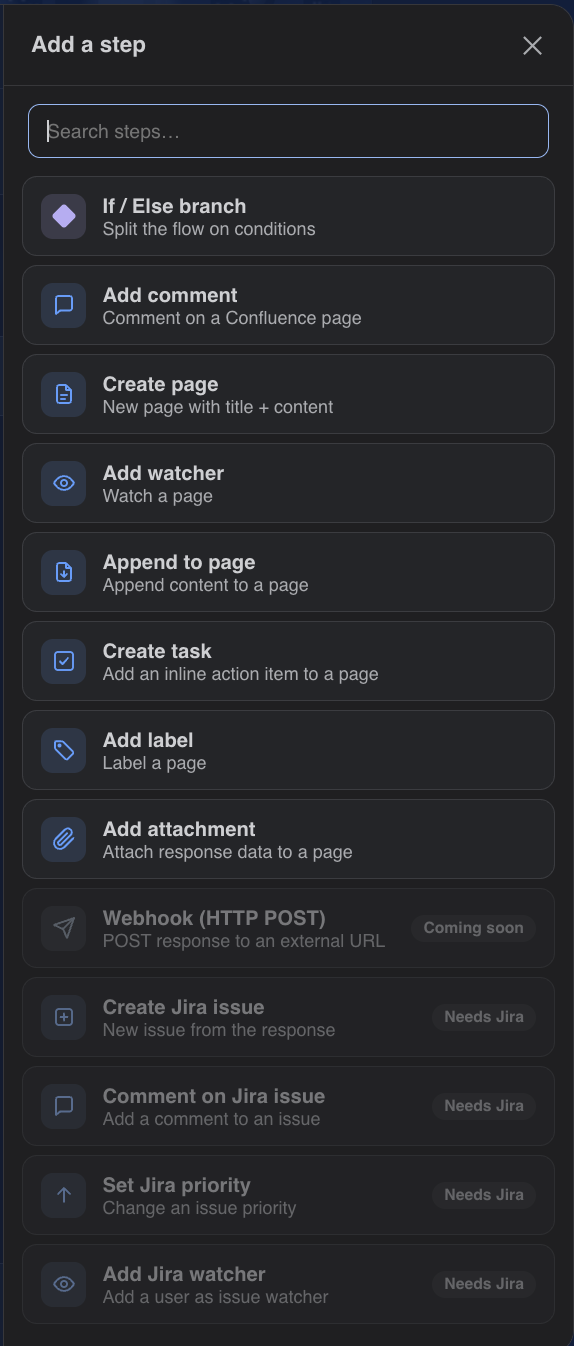
Confluence — Create page, Add comment, Append to page, Create task (with assignee), Add label, Add watcher, Add attachment (saves response data as a file on a page).
Jira — Create issue (project, type, priority, assignee, labels), Comment on issue, Set priority, Add watcher. Jira actions require Jira on the same site with the app installed; otherwise they show a Needs Jira badge.
Slack — Send a message to a channel via an incoming webhook URL (hooks.slack.com). Create one in Slack under channel → Integrations → Incoming Webhooks.
Microsoft Teams — Send a message via a Teams Workflows webhook. In Teams: channel → Workflows → "Post to a channel when a webhook request is received", then paste the generated URL.
Webhook (generic) — marked Coming Soon.
If / Else Branching
Add an If / Else branch to split the flow. Conditions use the same rule engine as dashboard filters — pick a field, an operator, and a value, or match free text.
- Submissions matching the rules follow the Then lane; everything else follows Else.
- Each lane holds its own list of actions with individual toggles.
- A branch with no condition set runs Then for every submission (the card warns you).
- After the lanes, the flow rejoins and continues with all submissions.
Run Modes: After Each vs. In Batches
After each — the flow runs once per submission, immediately.
In batches — submissions queue up until the batch size is reached (default 25, configurable 2–500), then the flow runs once for the whole batch. Leftover submissions flush automatically every hour, so partial batches are never stuck.
- In batch mode,
{{response.table}}and{{response.json}}aggregate the whole batch, and{{batch.count}}gives its size. - If / Else splits the batch: Then runs once with the matching submissions, Else once with the rest. Empty groups are skipped and logged.
Run As & Permissions
Choose whether actions run as the App (recommended) or as the Submitter. Run-as-submitter is unavailable while the form allows anonymous responses.
Saving an automation runs a permission preflight: every enabled action is checked against what you (the author) can personally do — e.g. edit permission on a target page, or create permission in a Jira project. Failing steps are highlighted with the reason. The same check re-runs at execution time, so an author who later loses access can't keep automating past it.
Test Runs & Logs
Test run performs a dry run against your latest submission (no real actions executed) and shows the path taken through conditions plus each action's resolved configuration.
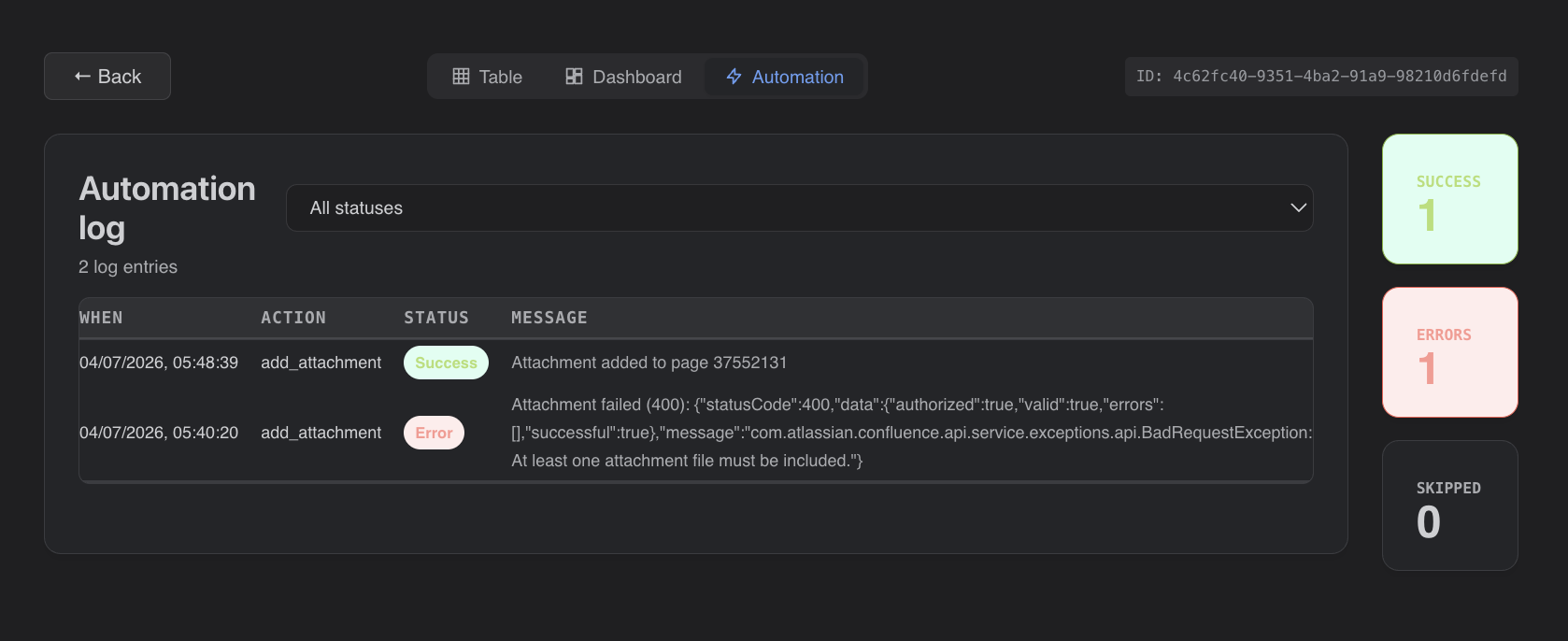
The Automation tab in a form's results view shows the execution log: every action run with status (success / error / skipped), message, and timestamp. Batch runs are grouped by batch ID.
Site-Wide Master Switch
Confluence admins can disable automation site-wide from Forms & Frontdoor Settings. While off, flows can still be drafted and saved but won't run — the builder shows a warning banner.