ENVIRONMENTS
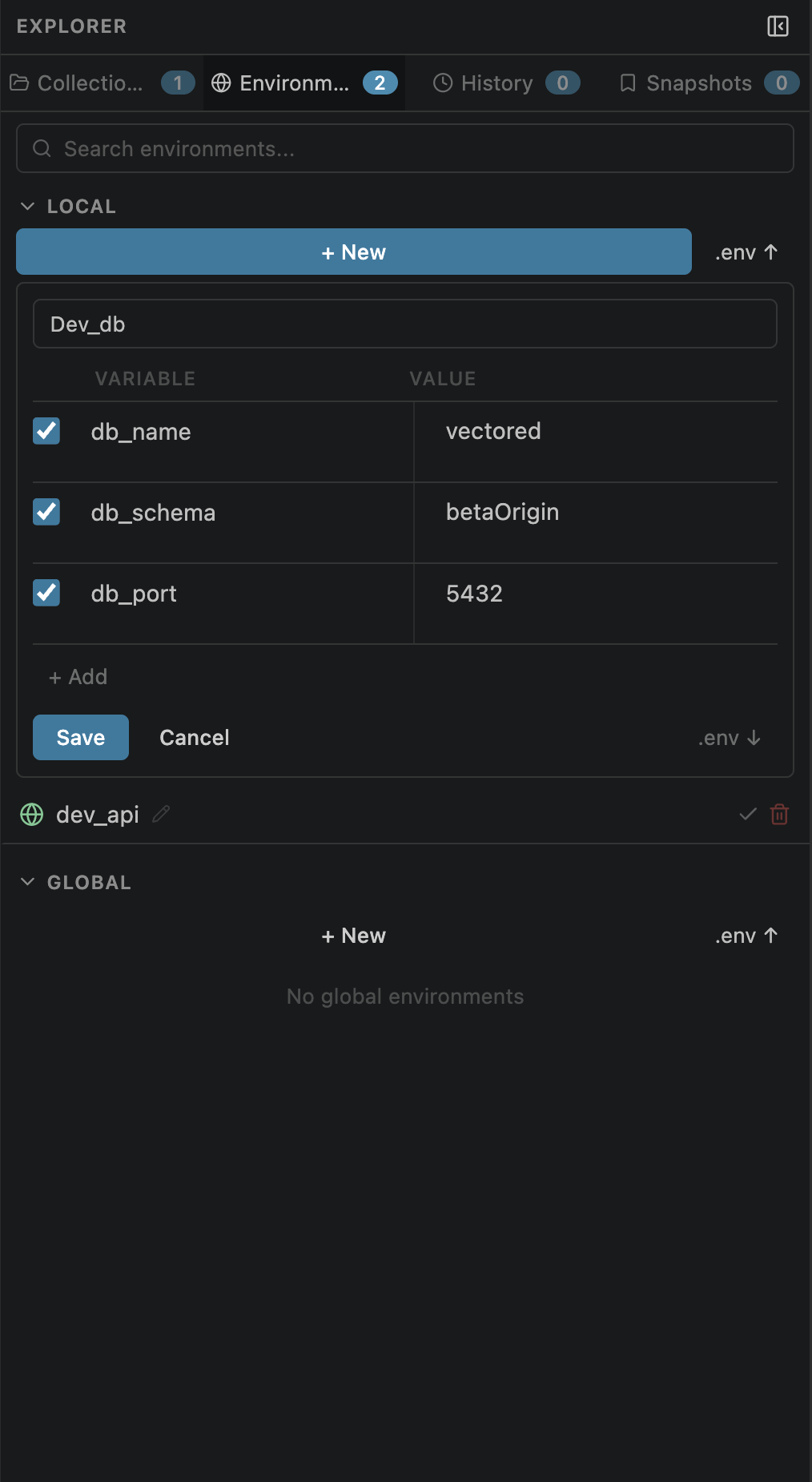
Creating Environments
Environments hold key-value variables that can be referenced anywhere in your requests using {{variable}} syntax.
Development, Staging, Production)id for internal trackingbase_url) with different values to switch contexts instantly.
Editing Variables
Each environment contains a variable table where you define key-value pairs used in your requests.
× button that appears on hoverExample variable table:
| ✓ | Key | Value |
|---|---|---|
| ☑ | base_url | https://api.example.com |
| ☑ | token | sk-abc123... |
| ☐ | debug | true |
Disabled variables (unchecked) are stored but not resolved during interpolation
Local vs Global
Environments exist in two scopes, allowing both workspace-specific and shared configurations.
Local Environments
Stored in .openpost/environments.json
Workspace-specific — only available in the current project
Perfect for project-specific endpoints and tokens
Git-committable — share with your team
Global Environments
Stored in ~/.openpost/global/environments.json
Available across all workspaces
Ideal for personal tokens, shared base URLs
Syncs across VS Code windows automatically
base_url = https://shared.api.com and Local has base_url = http://localhost:3000, the local value wins when both environments are active.
Active Selection
Only the active environment's variables are available for {{interpolation}} in your requests.

{{interpolation}}config.jsonDeleting Environments
Remove environments you no longer need.
{{unresolved}} until you switch to an environment that provides those keys.
CLI Management
Manage environments from the terminal using the API Studio CLI:
openpost env set <name>
Set the active environment by name
openpost env add <name> <key> <value>
Add a variable to an existing environment
openpost list environments
List all environments (local and global)
openpost run <collection> --env <name>
Override the active environment for a single run
--env flag is useful in CI/CD pipelines where you want to run a collection against a specific environment without changing the workspace default.