SECRET VAULT
Overview
A built-in AES-256-GCM encrypted vault for storing secrets (API keys, passwords, tokens) and TLS certificates. No external services needed — fully offline.
Global scope — shared across all workspaces
Advanced Mode — available via the Vault tab
Master password — protects all vault contents
Fully offline — no cloud, no external services
Creating the Vault
Set up a new encrypted vault in a few steps:
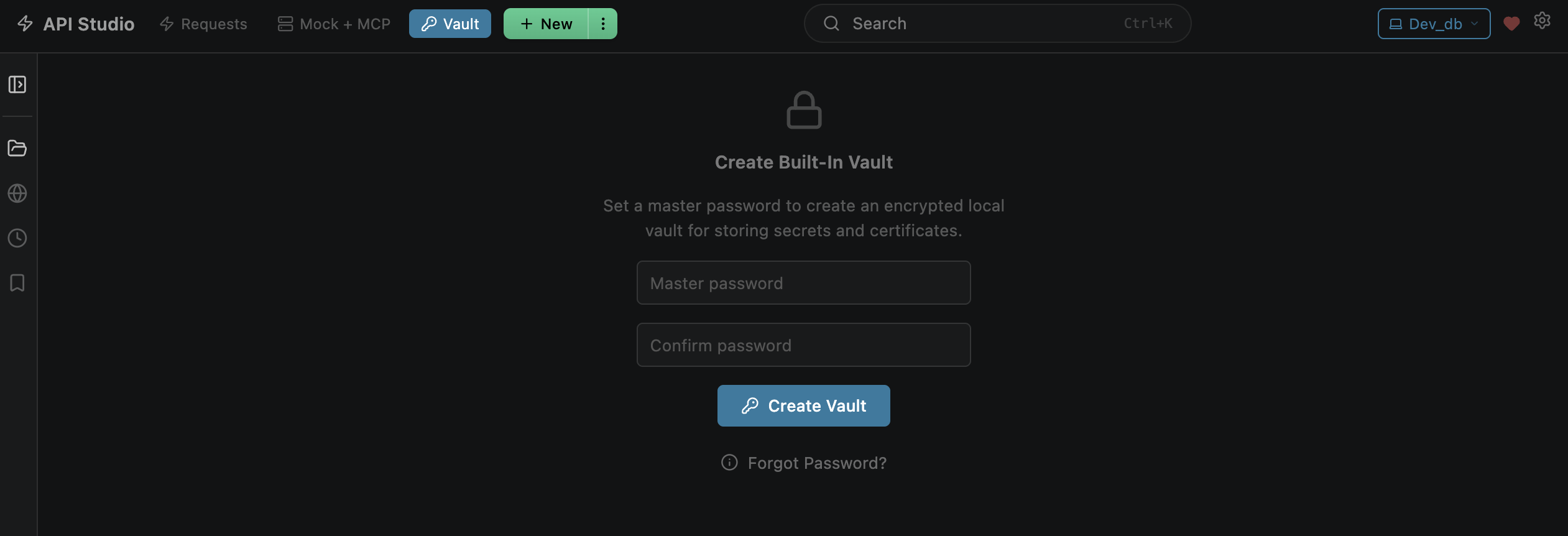
- Open the Vault tab
- Click 'Create Vault'
- Enter a master password (used to derive the encryption key)
- Confirm the password
- Click 'Create Vault'
Creates
~/.openpost/global/vault.enc (encrypted file)Once created, the vault is immediately unlocked
⚠️ Important: If you forget your master password, vault contents cannot be recovered. This is by design — there is no backdoor.
Unlocking
Unlock your vault to access secrets and certificates:
- Open the Vault tab
- Enter your master password
- Click 'Unlock'
Decrypts vault contents into memory
Vault stays unlocked for the VS Code session
Secrets available for
{{variable}} resolution while unlockedWrong password shows clear error (auth tag mismatch) without revealing contents
Locking
Lock the vault to clear secrets from memory:
Click the 'Lock' button in the Vault tab
Clears decrypted data from memory
Secrets no longer resolve (silently skipped in interpolation)
Auto-locks when VS Code closes
In Simple Mode, vault is always locked
Changing Password
Change your vault's master password (vault must be unlocked):
- Click 'Change Password'
- Enter your current password
- Enter the new password
Re-encrypts all vault data with the new key
Previous password no longer works
Keep Unlocked (OS Keychain)
Optional convenience toggle to avoid entering your password every session:
Enable the 'Keep Unlocked' toggle
Stores master password in the OS keychain
Vault auto-unlocks on next VS Code startup without password prompt
Disable to require password every session
| Platform | Keychain Backend |
|---|---|
| macOS | macOS Keychain |
| Windows | Windows Credential Store |
| Linux | Linux Secret Service |
Storage & Encryption
Technical details of how the vault is stored and encrypted:
| Property | Value |
|---|---|
| File | ~/.openpost/global/vault.enc |
| Algorithm | AES-256-GCM |
| Key derivation | PBKDF2 with SHA-512, random 32-byte salt, 100,000 iterations |
| File format | JSON with salt, iv, authTag, ciphertext (all Base64) |
| Decrypted payload | { secrets: Record<string,string>, certificates: CertificateEntry[] } |
Git safety: The vault file is encrypted and stored in
~/.openpost/global/ (your home directory), not inside workspace folders. It's safe to exist alongside git repos — encrypted contents are never committed.