MCP SERVERS
Overview
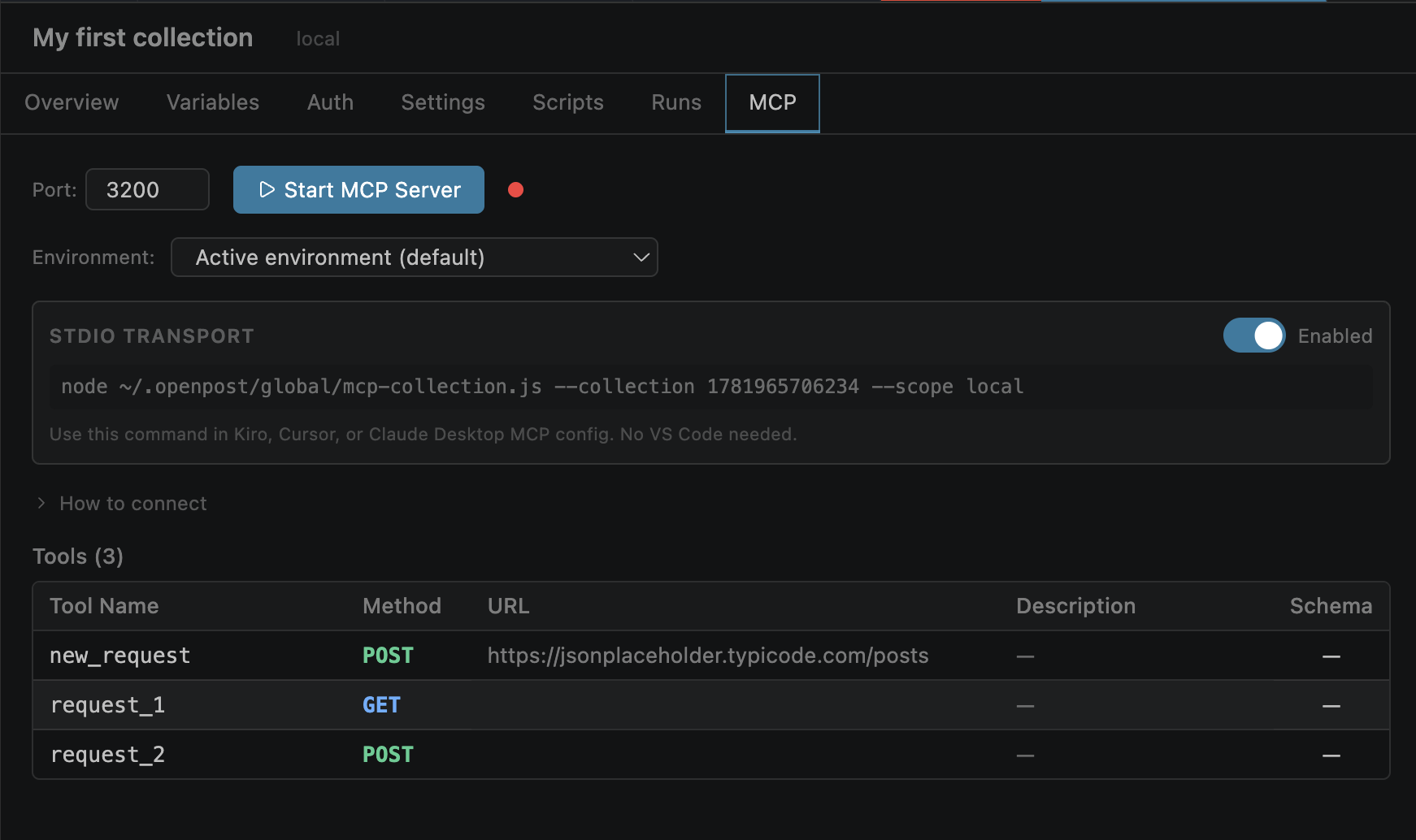
Collection MCP servers expose your saved API requests as tools for AI assistants. Any MCP-compatible client can discover and call your endpoints without manual configuration.
POST /mcp following the MCP specificationStarting a Server
Launch a collection MCP server from the Collection Editor's MCP tab (requires Advanced Mode).
Open a collection → click the MCP sub-tab in the Collection Editor
Click Start MCP Server — a port is auto-assigned (or configure a specific port)
Server starts listening — the URL is displayed: http://127.0.0.1:{port}/mcp
Point your AI client to this URL to connect
| Option | Description |
|---|---|
| Port | Auto-assigned by default, or set a specific port number |
| Auto-start | Server starts automatically when VS Code launches |
| Persistence | Configs saved in .openpost/mcp-servers.json |
Tool Generation
Each request in the collection automatically becomes an MCP tool that AI clients can discover and invoke.
get_users)mcpDescription field (editable per request)mcpDescription are still exposed as tools — the request name is used as the description.
Input Schema
Define a JSON Schema for each tool's input parameters so AI clients know what arguments the tool accepts.
Auto-generate
Click Generate Schema to automatically create a JSON Schema from the request's params and body fields.
Custom schema
Edit the JSON Schema directly for full control over parameter names, types, and descriptions.
When an AI client calls a tool with parameters, the values are injected into the request — mapped to body fields, query params, or headers as appropriate.
Example mcpInputSchema:
{
  "type": "object",
  "properties": {
    "userId": {
      "type": "string",
      "description": "The user ID to fetch"
    },
    "includeProfile": {
      "type": "boolean",
      "description": "Whether to include profile details"
    }
  },
  "required": ["userId"]
}
Call Logging
Every MCP interaction is logged for debugging and monitoring AI client behavior.
| Log Field | Description |
|---|---|
| Timestamp | When the call was received |
| Method | tools/list or tools/call |
| Tool Name | Which tool was invoked |
| Status | Success or error |
Configuration
MCP server configs are persisted in .openpost/mcp-servers.json with the following fields:
| Field | Type | Description |
|---|---|---|
| id | string | Unique identifier |
| name | string | Display name for the server |
| collectionId | string | Collection this server exposes |
| scope | string | Local or global scope |
| port | number | Port number for the server |
| autoStart | boolean | Start on VS Code launch |
| swaggerEnabled | boolean | Serve OpenAPI spec at /_openapi.json |
| maxLogEntries | number | Maximum call log entries to keep |
swaggerEnabled is true, the server also serves an auto-generated OpenAPI 3.0 spec at /_openapi.json alongside the MCP endpoint — useful for clients that prefer REST discovery.