1. Download a page as Word or PDF
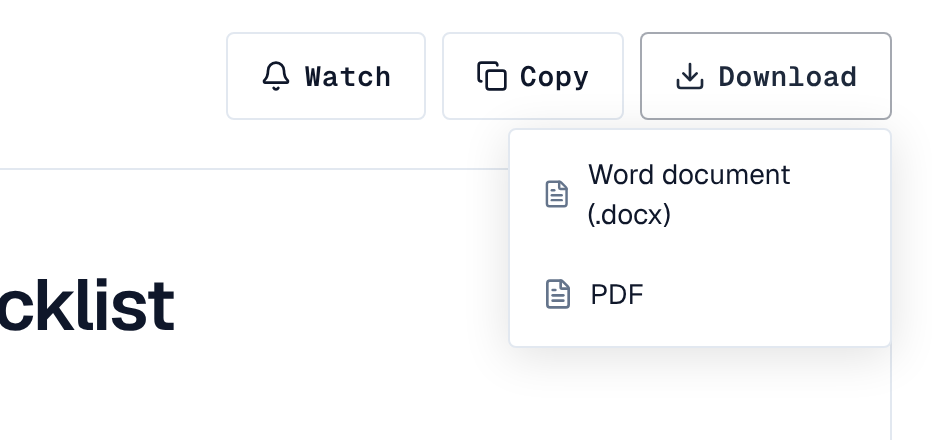
Download above a published page offers Word document (.docx) or PDF. In the editor it is in Page details once the page has a version. Anyone who can read the page can download it, readers who aren't signed in too.
- The file holds the published version you are looking at, never the draft: heading and figure numbers, tables of contents, lists, tables, code, boxes, images with captions, and the content of blocks that show other pages you may read.
- PNG, JPEG and GIF images are included; other images and videos become a note or a link.
- The Word file shows every language. The PDF draws Latin, Greek and Cyrillic text; other scripts and emoji don't show there yet, so use Word for them. Pages are A4.
- A very large page can take too long to turn into a file; try again later or download a smaller page. When many people export at once, the Wiki asks you to try again in a moment.
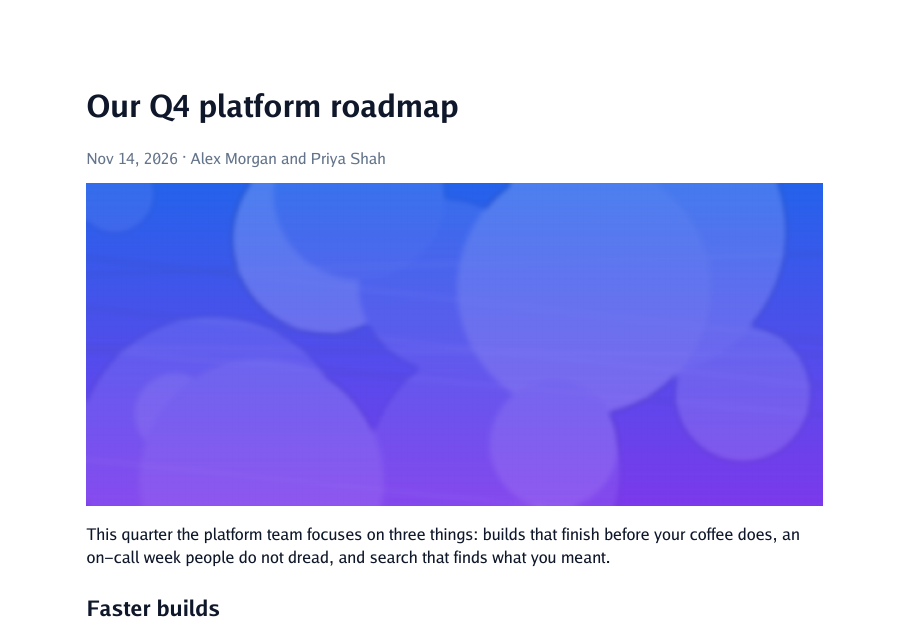
- A blog post's file starts with its title, its date and authors, and its cover image.
2. Import Markdown
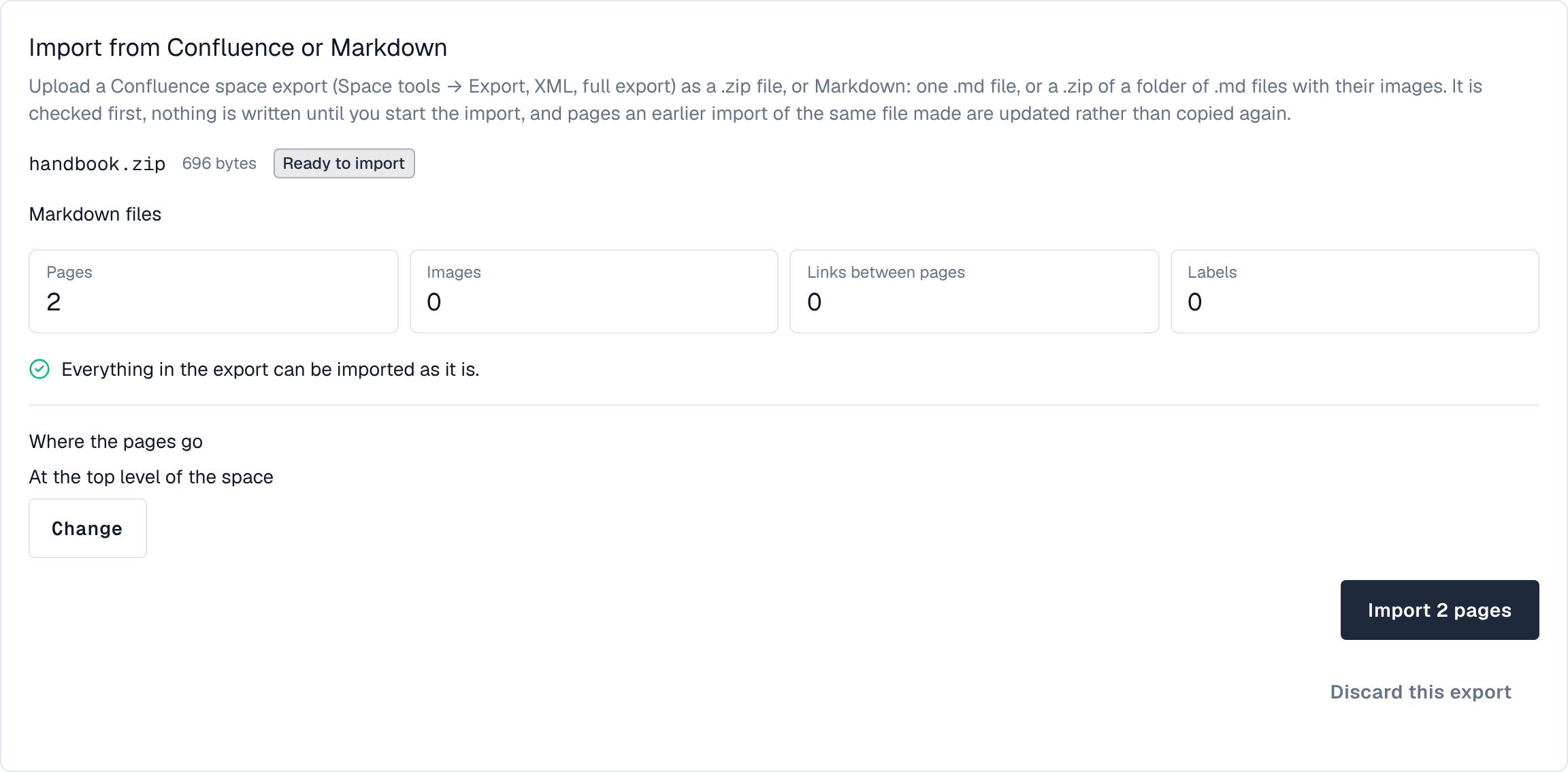
A space's admins import Markdown on the space's Import tab: one .md file, or a .zip of a folder of .md files with their images.
- Each folder becomes a page holding its files' pages; a folder's index.md, README.md or _index.md is that page's text.
- A file's title comes from its front matter title, else its first top-level heading, else its name. A leading number (02-setup.md) sets the order and is left out of the title.
- Tables, task lists, strikethrough, links between the files and the images they show are kept. HTML inside the Markdown is left out.
- Importing the same folder again into the same space updates the pages it made, except pages edited here since.
The upload is checked first, and nothing is written until you start the import from its report. Each page gets one version.
3. Import from Confluence
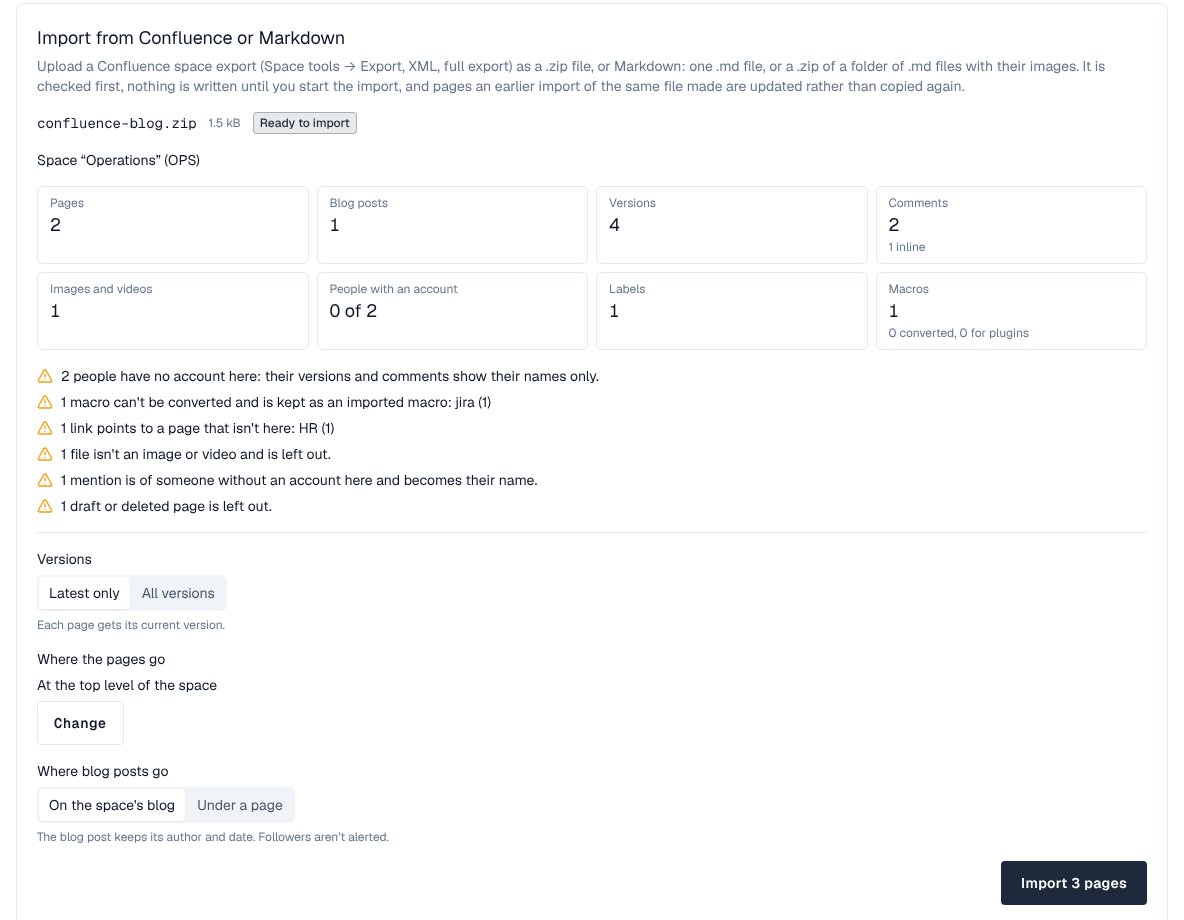
A Confluence space export (Space tools → Export, XML, full export, as a .zip) is imported the same way, with its page tree, versions, comments, labels, images and videos, and people matched by email. See Import from Confluence for the steps and what converts.
When the export has blog posts and the space's blog is on, the report asks Where blog posts go:
- On the space's blog (the default): each becomes a post on the Blog tab, dated when it was written in Confluence, with its authors where they have an account here. Followers aren't alerted about imported posts.
- Under a page: as before blogs came to the Wiki, the posts become pages under a page with the title you give.
With the space's blog off, blog posts always go under a page.
Imports are for the space's admins, and your administrator can turn them off or limit the upload size.