1. Installation
Recognition Hub is available on the monday.com marketplace for monday.com Cloud. Install it from the Marketplace listing, authorize the app for your site, and it appears under Apps in your monday.com navigation. Free for teams of up to 10 users.
2. Opening the Hub
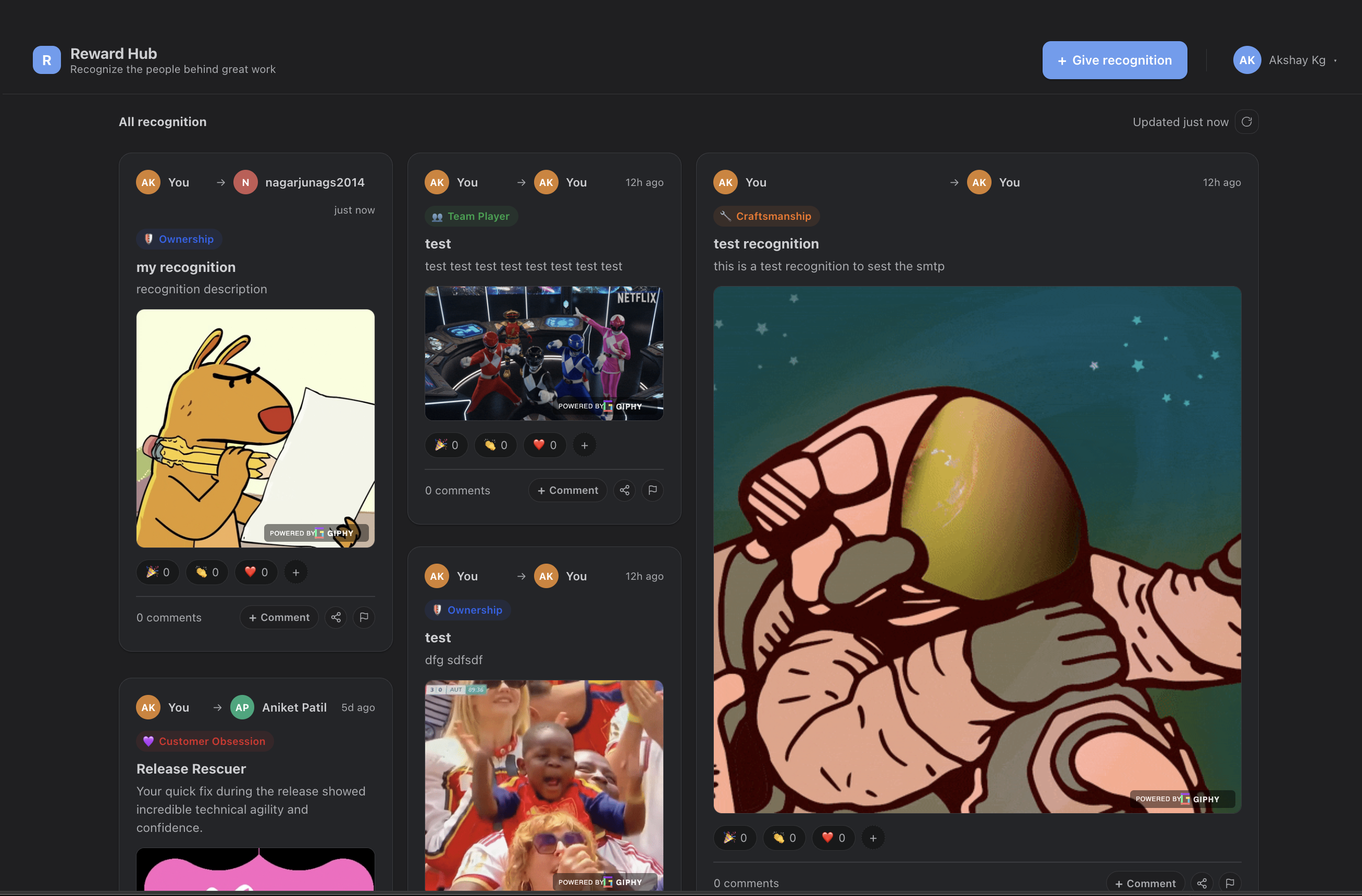
Navigate to Apps > Recognition Hub from the monday.com top navigation. The hub is a live mural of recognition cards — it auto-refreshes every 30 seconds, loads more as you scroll, and follows your monday.com light/dark theme automatically.
3. Posting Your First Recognition
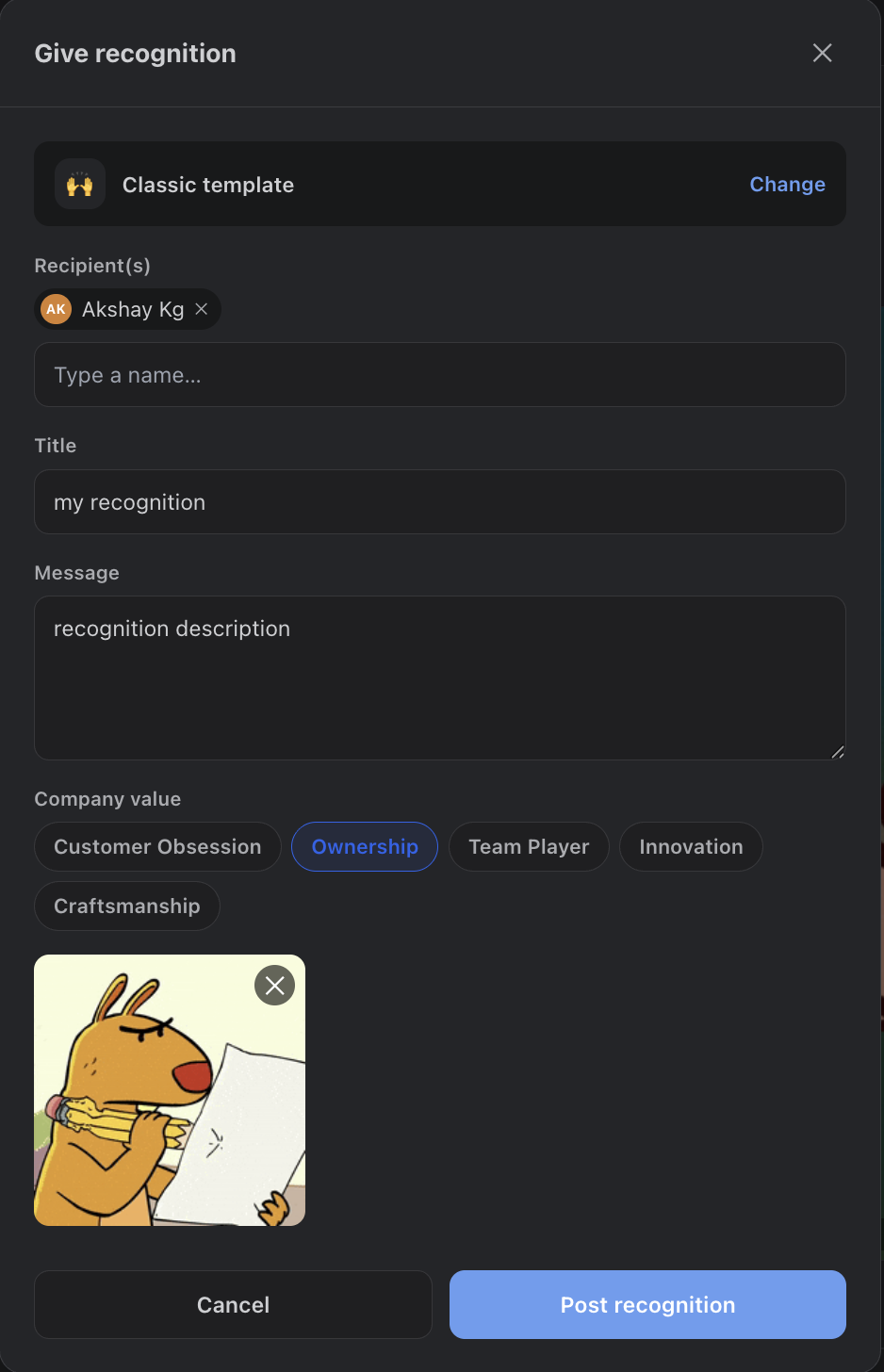
Click + Give recognition in the header. Pick a card template, search for the teammates you want to recognize, write a short title and message, optionally tag a company value and attach a GIF, then post. The card appears at the top of the mural instantly and recipients are notified by email.
Where your data is stored. Recognition Hub keeps its own PostgreSQL database — recognitions, comments, reactions, reward ledgers and cached profiles live there rather than in monday.com storage, so you choose the provider and region. Privacy & Data Handling has the full picture.
4. Admin Setup
Site admins configure Recognition Hub under Settings > Recognition Hub (monday.com): connect a GIPHY key, define company values, set up email notifications, manage moderation, and — optionally — connect Tremendous to attach real monetary rewards to recognitions.
Turn on GIFs
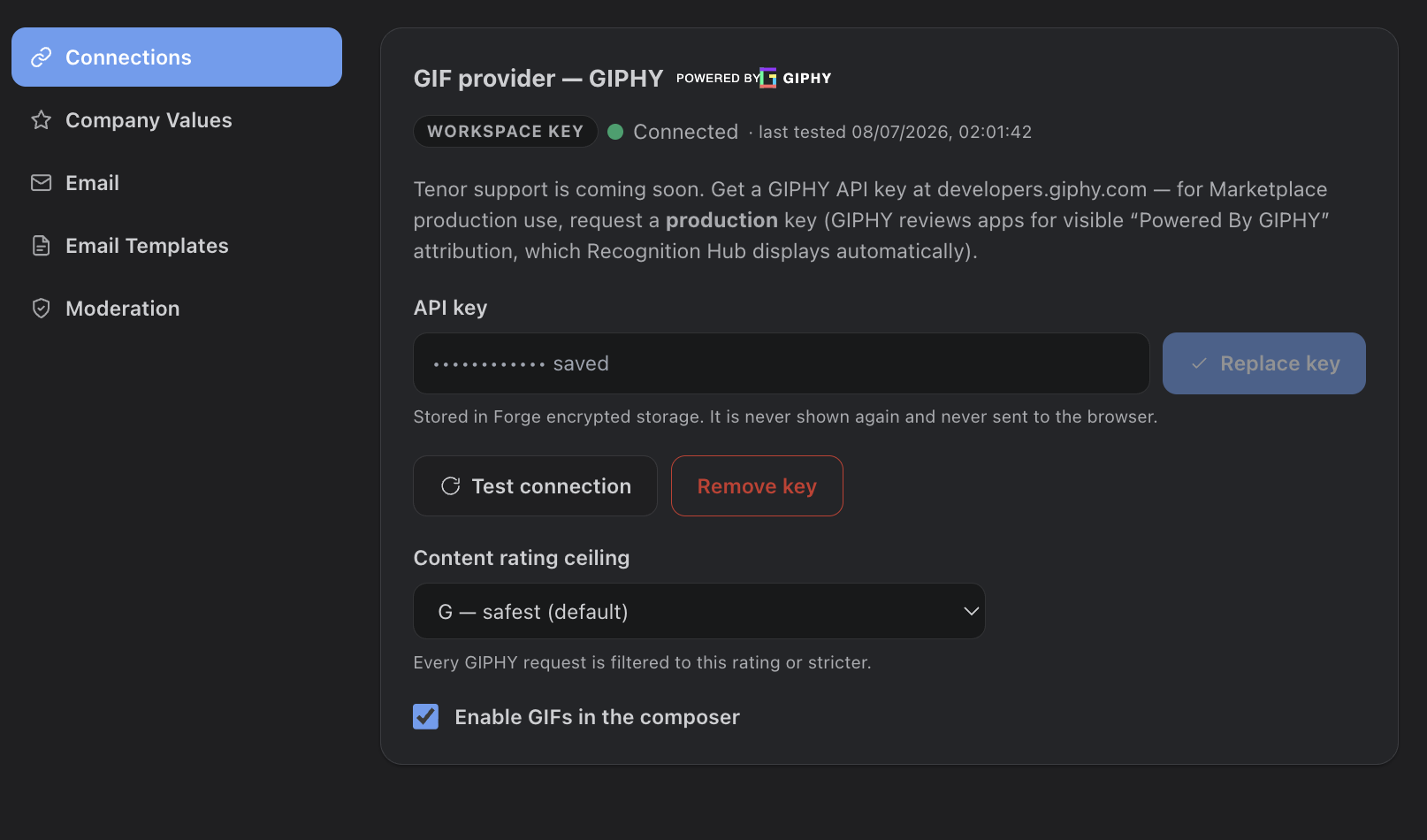
GIFs are off by default. To enable the GIF picker in the composer, open Settings > Connections, make sure a GIPHY key is present (the app can ship a built-in key, or you can paste your own workspace key), then switch on Enable GIFs in the composer. The toggle stays disabled until a key exists. Use Test connection to confirm the key is healthy, then reload the hub — the GIF button appears in the composer. Full details in Giving Recognition.
Don't see GIFs? The most common cause is the Enable GIFs in the composer toggle still being off, or the page not yet reloaded after enabling it. A key alone is not enough — the toggle must be on.
Rewards (optional)
Recognition Hub can attach real, spendable rewards to recognitions — funded and fulfilled through Tremendous. Recipients redeem their balance for a gift card of their choice, PayPal, and more. Setting it up is a one-time admin task: connect a Tremendous API key, pick a reward catalog, create funding pools, and choose who can give rewards. See Rewards & Tremendous Setup for the full step-by-step.